Enrollment Lottery Software: A Fair-Draw Guide
Enrollment lottery software explained: when a lottery beats first-come, how ranked choices and the draw work, and how to tell parents the process is fair.
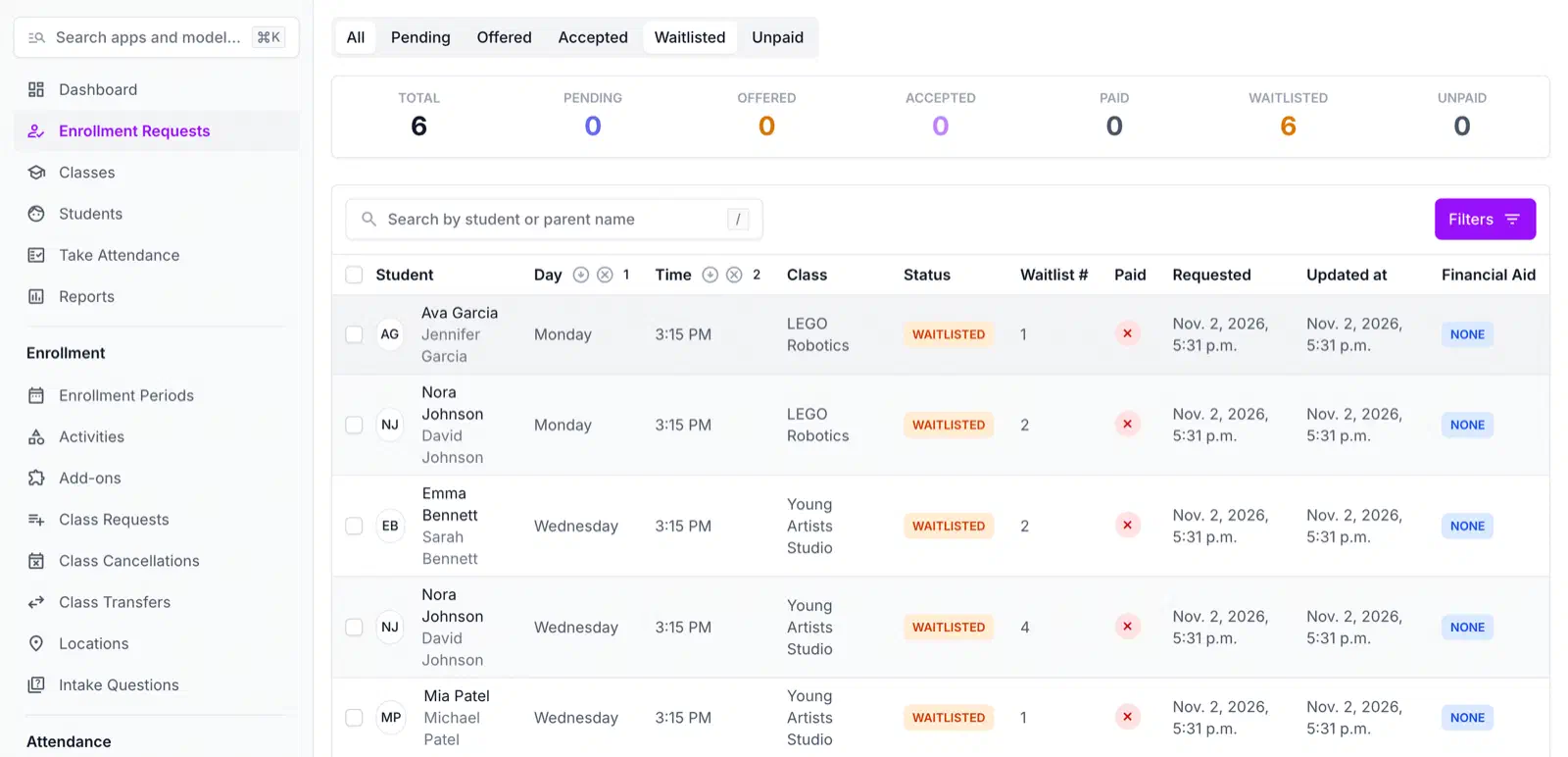
Table of Contents
Every popular class has a registration night. Parents refresh the page at 8:00, the fast connections win, and by 8:02 the class is full. The families who missed out tell each other the process was rigged, and your inbox fills with requests to “just add one more.”
A lottery fixes the cause, because nobody races. This guide covers when a lottery is the right tool, how ranked choices and the draw work, and what to tell parents.
When a lottery beats first-come, first-served
First-come, first-served is fine when there are more seats than families. It stops working when demand outstrips supply, for three reasons:
- Speed decides who gets in. The winners are the families who were at a keyboard at the right minute, not the ones who most wanted the class.
- Registration night is a load spike. Everyone arrives at once, and your staff answer “is it working?” messages all evening.
- Losing feels personal. A family that lost a footrace by 40 seconds is harder to calm down than a family that lost a draw.
A lottery replaces the footrace with a window. Families submit requests any time while registration is open, and when it closes, seats are assigned at random. The time of the request does not matter. If your classes fill on night one, run a lottery. If most have open seats, stay with first-come and keep a clean waitlist for the few that fill.
SwiftEnroll supports both, set per program. See the waitlists and placement features for the comparison, or how after-school programs use it.
How ranked choices work
In a SwiftEnroll lottery, a family ranks classes for each child, per time slot. The program decides how many choices a family can rank: three by default, or four. Families can change their requests any time before the window closes.
The draw then works in rounds. It places every first choice across the whole program before it places any second choice, and every second choice before any third. A child who loses a first choice can still land in a second choice, provided that class still has room.
A child holds one seat at any given time. Once a child has an offer, their other requests for classes that overlap it in time are removed, so no child ends up double-booked and no second seat goes to a child who already has one.
How the draw is run and recorded
Here is what actually happens, step by step.
A random number for every request
Each request receives a random number when it is created. Inside a round, requests for the same class are ordered by that number, and ties are broken by the request’s internal ID. Arrival time plays no part, so an early request and a last-minute request have the same chance.
The draw orders requests by choice rank and that random number, and nothing else. It has no priority tiers, so a policy that favors siblings or returning students is not something the draw applies for you. If your program has such a rule, tell families how you handle it.
The draw waits for the window to close
An admin cannot run the draw while registration is still open, and cannot run it once classes have started. SwiftEnroll emails program admins once when a window has closed with requests waiting.
Stage, review, commit
The draw has two steps.
- Stage. SwiftEnroll computes the whole allocation and applies none of it. You see every student’s result: offered a seat, waitlisted with a position, or removed because the student was placed in a clashing class. You also see how full every class would be. Nobody has been emailed and no request has changed.
- Commit. Committing applies exactly what you reviewed. If something changed in between, such as a late request or a capacity edit, SwiftEnroll refuses to commit, stages a fresh draw over the current data, and lists what differed.
If the staged result is wrong because a class has no sessions or a capacity is too low, discard the stage, fix the class, and stage again.
A record you can look up later
Each stage and commit is saved as a draw record under Draw history on the draw page. For every request the record keeps the choice rank, the random number, and the outcome: offered, waitlisted with its position, or removed for a clash. A period is drawn once. After a commit, the button is gone for everyone, and seats that open later are filled from the waitlist in the order the draw left it.
That record is for you. It answers “why did my child not get in?” with specifics.
What happens to the families who are not placed
Every request the draw cannot seat becomes a waitlist entry. This is where trust is won or lost.
- The waitlist is ordered. Entries are sorted by choice rank first, then by the random number. A first-choice request that missed out sits ahead of a third-choice request for the same class.
- Families see their position. A waitlisted child shows as “Waitlisted” with a number on the family’s enrollment page.
- Families can leave. A Leave waitlist button takes them off, and everyone behind them moves up.
- Late sign-ups go to the back. A family who signs up after the window closes is queued behind everyone who was in the draw, in the order they signed up. Joining never moves anyone already waiting.
- Promotion is automatic. When a seat opens, the next family on the list is offered it. In a lottery, a promotion is always an offer the family has to accept. Nobody is charged without accepting.

Offers can carry an acceptance deadline. You set the number of days, and each offer’s clock starts when it is sent. If a family lets an offer lapse and someone is waiting, the seat is released and moves to the next family. If you leave the setting blank, offers do not expire.
What families see
When you commit the draw, each family gets one email. It lists each child’s offered classes with an acceptance deadline, and each child’s waitlisted classes with their position. Every family with a request in the period gets it, placed or not.
Offered seats appear on the family’s enrollment page, where they accept or reject. Payment is triggered only when they accept, and only once the class is confirmed, as we explain in charging families only when the class runs. For the full parent view, see how a family enrolls.
How to explain fairness to parents
Most complaints come from not knowing the rules. Put them in the announcement before registration opens. Here is a paragraph you can adapt:
Registration for [Program Name] classes is a lottery, not first-come, first-served. You can submit requests at any time between [open date and time] and [close date and time], and the time you submit does not affect your chances. For each time slot, rank the classes you want in order of preference. After registration closes, every request is given a random number. We place all first choices before any second choice, and within a choice we go in random-number order. If a class is full, your request goes on its waitlist, and you can see your place in line on your account. If a seat opens, the next family on the list is offered it. Offers must be accepted by [deadline]. You are not charged when you submit a request. Payment happens only after you accept an offer, and only once the class is confirmed to run.
If you have exceptions, such as reserved seats for a partner school, list them. Parents forgive a rule they were told about.
Running a lottery in SwiftEnroll
The short version of the setup:
- Choose Lottery as the enrollment type in Program Configuration. It is locked once a period is open to families, so decide before the preview date.
- Set the ranked choices per time slot (3 or 4) and an approval expiry in days for offers.
- Create the enrollment period with its open and close dates, and add classes with capacities and sessions.
- Let families submit requests during the window.
- After it closes, run the draw from the period: stage it, review the result, commit it. Families get their results email.
- Watch the waitlist work. Open seats are offered to the next family in order. Open enrollment for leftover seats should wait until the draw is committed, and SwiftEnroll will not let you switch it on while requests are still waiting.
Pricing is public on the pricing page.
More demand than seats?
See a lottery draw and a waitlist promotion run on your own classes and capacities.
See waitlists and lotteriesEnrollment lottery questions
Related Articles
Youth Program Registration Forms: What Parents Actually Abandon
Most youth program registration forms lose families mid-way. Here's what to ask, what to skip, and how to build a form parents actually finish.
Charge Families Only When the Class Runs
Avoid minimum enrollment refunds: charge families only once a class reaches its minimum. How request, offer, accept and charge work, and a cancellation policy.
Preschool Enrollment: Why Next Year Is Decided This Fall
Preschool enrollment for next September is decided in the fall. Open no-charge spot requests by age group now and plan capacity from real demand, not guesses.
See your next season on SwiftEnroll
Twenty minutes with Joe, your real class list, no slides.